Delta ABS Firmware Update Guide
Firmware updates are not issued publicly, contact your supplying dealer for an update if required.
1. Connect to ABS
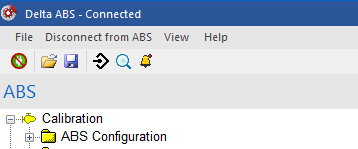
With the ignition on and the USB-CAN interface connected to your PC, click Connect to ABS. Make sure the title bar shows Connected before continuing.
2. Open Program ABS from File
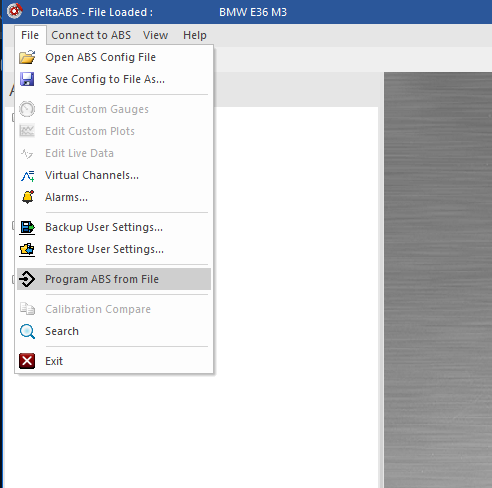
In DeltaABS, open the File menu and click Program ABS from File.
3. Select the firmware file type
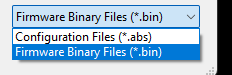
In the program file dialog, choose Firmware Binary Files (*.bin) in the drop-down box.
4. Select the firmware file
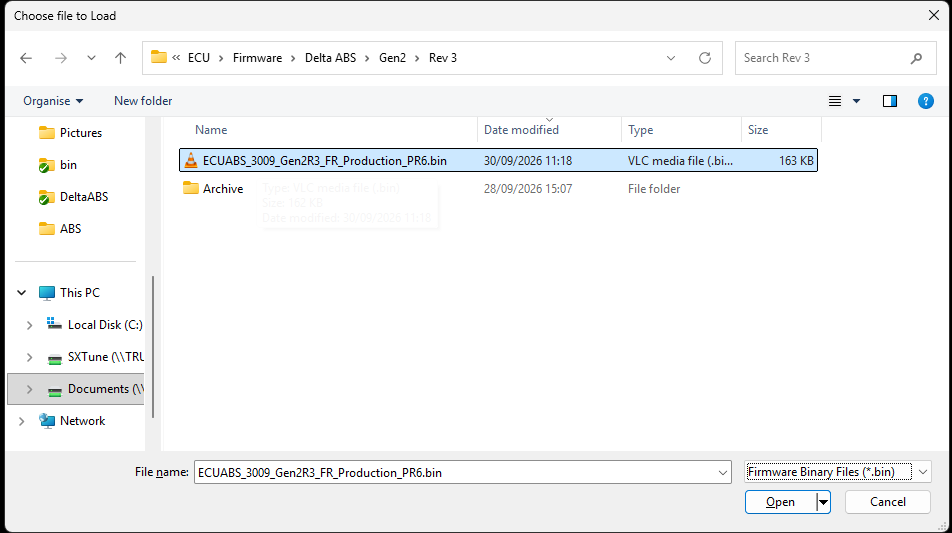
Select the firmware file supplied by your dealer and click Open.
5. Switch the ignition off
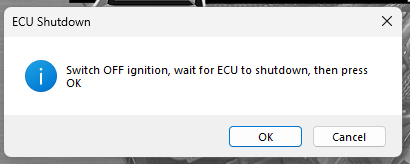
The ECU Shutdown message box will appear. Switch the ignition off, wait for the ABS unit to shut down, then click OK.
6. Switch the ignition on
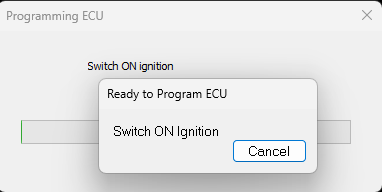
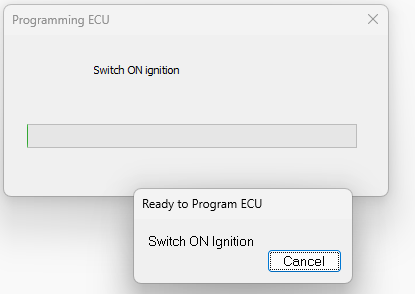
When the message box says Switch ON Ignition, turn on the ignition switch.
7. Wait for programming
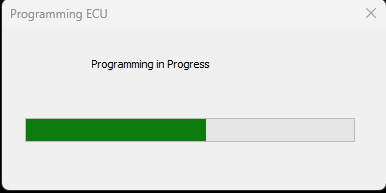
Programming will start and the progress bar will show the status. Firmware updates take around 30 seconds to complete.
8. Confirm programming completed
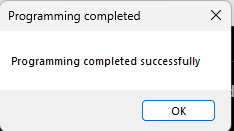
At the end of the process, the message Programming completed successfully will appear. Click OK.
Troubleshooting
1. No response at Switch ON Ignition
If there is no response at this stage, it means that the ignition wire has either not switched off or not switched back on again. Check the wiring to the ignition connection on the loom.
2. Recover after programming fails
If programming fails at any stage after it has started, the ABS unit is likely to be left with no firmware loaded. In this state it cannot communicate with the PC software and may appear to be “bricked”. It can always be recovered because the bootloader cannot be erased.
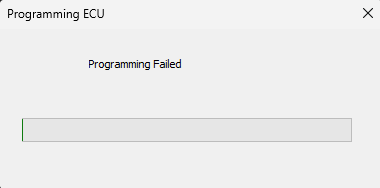
To recover the unit, start the programming process again without attempting to connect to the ABS unit first:
- Switch all power off.
- Disconnect and reconnect the USB-CAN interface.
- Close and reopen the DeltaABS software.
- Go straight to File → Program ABS from File. Do not click Connect to ABS first.
- Choose Firmware Binary Files (*.bin), select the firmware binary file and click Open.
- Turn the ignition on when the software tells you to do so. Programming will start from this point.
- Repeat the recovery process as many times as necessary until programming completes successfully. The ABS unit will then be operational again.