Delta ABS Onboard Logging Guide
Firmware support
Onboard data logging requires ABS firmware version 2 or later.
To check the installed firmware version, open the ABS Configuration Variables page and look at Software ID at the top. In the example below, Delta Race ABS 2 - Sep 30 2026 indicates firmware V2.

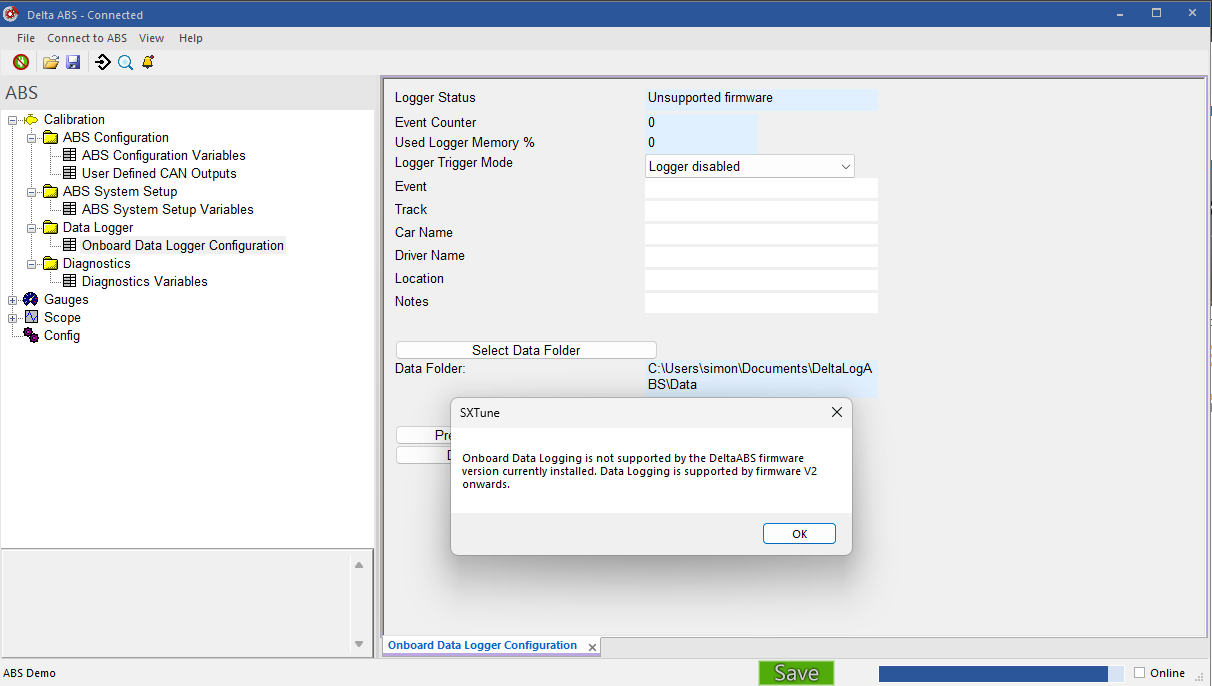
If the firmware installed in the ABS unit does not support onboard logging, the Onboard Data Logger Configuration page displays Unsupported firmware in Logger Status and shows the following message:
Onboard Data Logging is not supported by the DeltaABS firmware version currently installed. Data Logging is supported by firmware V2 onwards.
Firmware updates are not issued publicly, contact your supplying dealer for an update if required. Click here for instructions on how to update your ABS unit.
Logger setup
Open Data Logger → Onboard Data Logger Configuration in DeltaABS to view the logger status and configure recording.
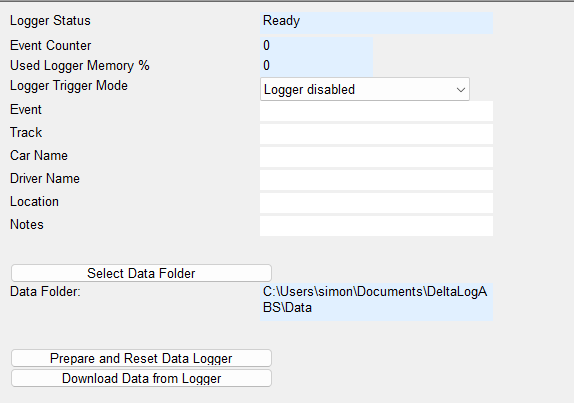
- Logger Status
Shows the current logging status. Possible values are:
- Offline
- Not prepared
- Ready
- Log stored
- Finishing write
- Logging
- Logger error
- Event Counter
The number of logs stored.
- Used Logger Memory %
The percentage of logger memory used. When the memory is full, the logger stops recording.
- Logger Trigger Mode
Select one of the following modes:
- Logger disabled
- Wheel Speed Trigger
- ABS Active Trigger
- Event, Track, Car Name, Driver Name, Location and Notes
Optional information stored in the data log file. Leave these boxes blank if the information is not required.
- Select Data Folder
Click this button to choose the folder on your PC where data logs are saved after download. The selected folder is shown beside Data Folder.
- Prepare and Reset Data Logger
Initialises the logger and erases its memory, ready for use. Any logs stored in the onboard logger are erased.
- Download Data from Logger
Transfers recorded data to your PC via the USB-CAN interface, processes it into DeltaLogABS-compatible files and saves them in the selected data folder. Downloading and processing a full logger can take up to 2 minutes.
Prepare the logger for recording
- Before using the logger, click Prepare and Reset Data Logger to initialise it and erase the logger memory. Download any logs you want to keep before resetting.
- Select the required trigger mode and enter any optional log information.
- After making changes, click the red SAVE button at the bottom of the page. The button turns green after saving.
- Check that Logger Status shows Ready before recording.
Recording capacity
The logger memory holds approximately 3 minutes of recording. This is typically enough for:
- 15–20 ABS events in ABS Active Trigger mode, depending on the duration of each event.
- 3 minutes of driving while recording in Wheel Speed Trigger mode.
When the logger memory is full, recording stops.
Recording with Wheel Speed Trigger
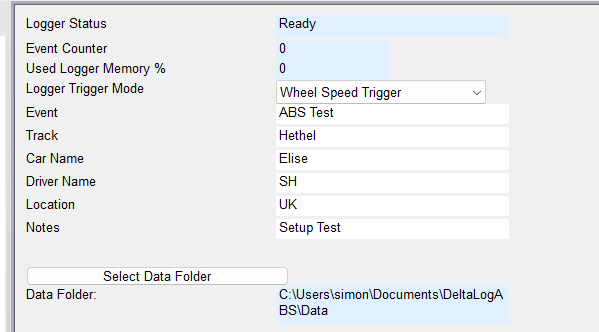
Select Wheel Speed Trigger in Logger Trigger Mode. The example below shows a typical setup with optional information filled in for an ABS installation test.
- Logging starts when vehicle speed exceeds 20 km/h.
- Recording continues while vehicle speed remains above this threshold, until the logger memory is full.
- When memory is full, recording stops.
Recording with ABS Active Trigger
Select ABS Active Trigger in Logger Trigger Mode to record ABS intervention as individual events. The example below shows a typical setup.
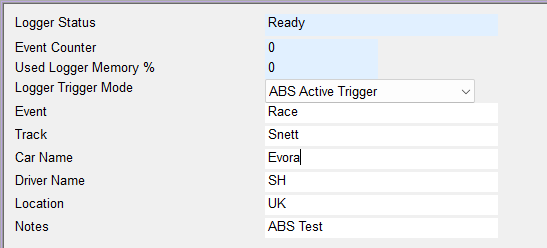
Each event records:
- A 3-second pre-trigger buffer before ABS intervention.
- The full duration of ABS intervention.
- A 3-second post-trigger buffer after ABS intervention.
Each recorded event increments the Event Counter. Events continue to be recorded until the logger memory is full, when recording stops.
Download recorded data
After driving, click Download Data from Logger to download the recorded data to your PC.
- The logged data is transferred from the onboard logger to your PC via the USB-CAN interface.
- The data is processed into DeltaLogABS-compatible files.
- The files are saved in the folder selected using Select Data Folder.
Downloading and processing a full logger can take up to 2 minutes.
Data Analysis
Use DeltaLogABS to analyse the downloaded log files. The app is included in the Delta ABS setup installer.
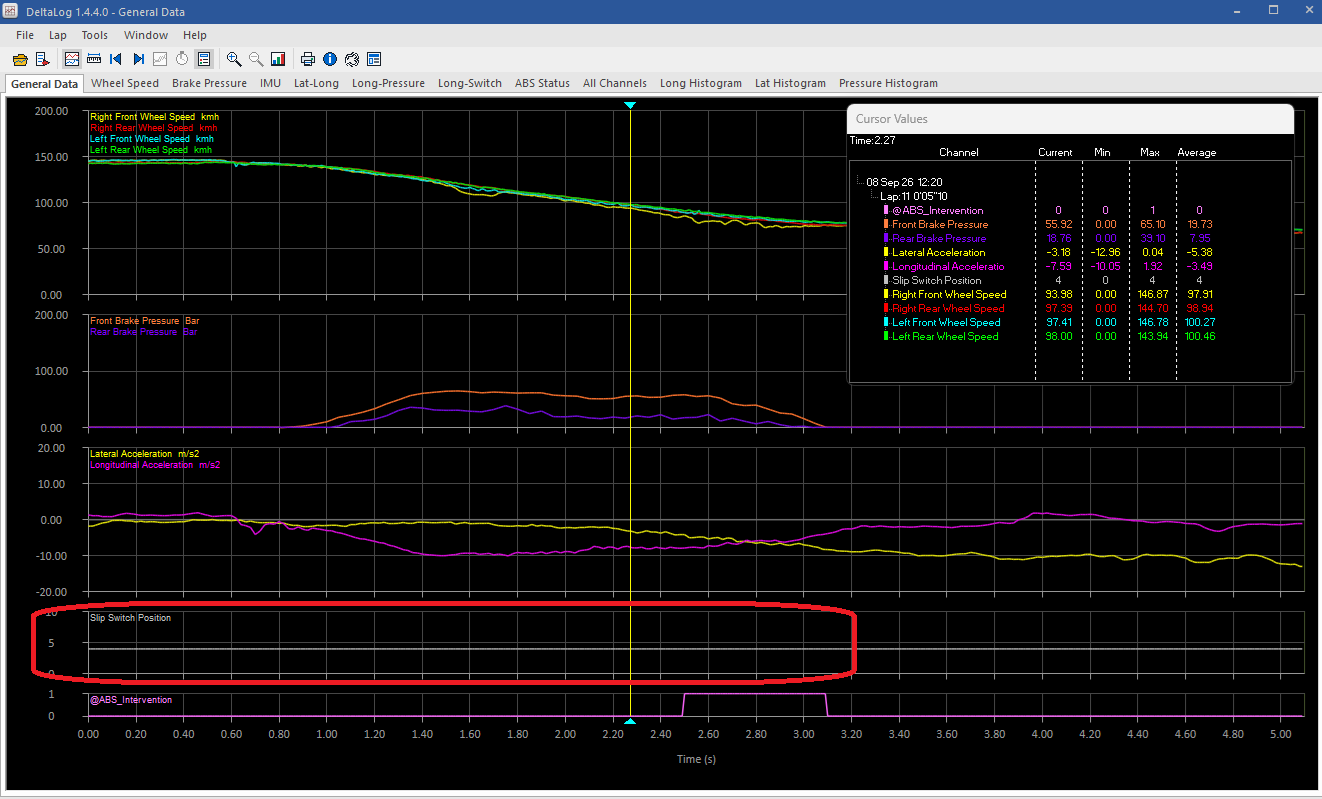
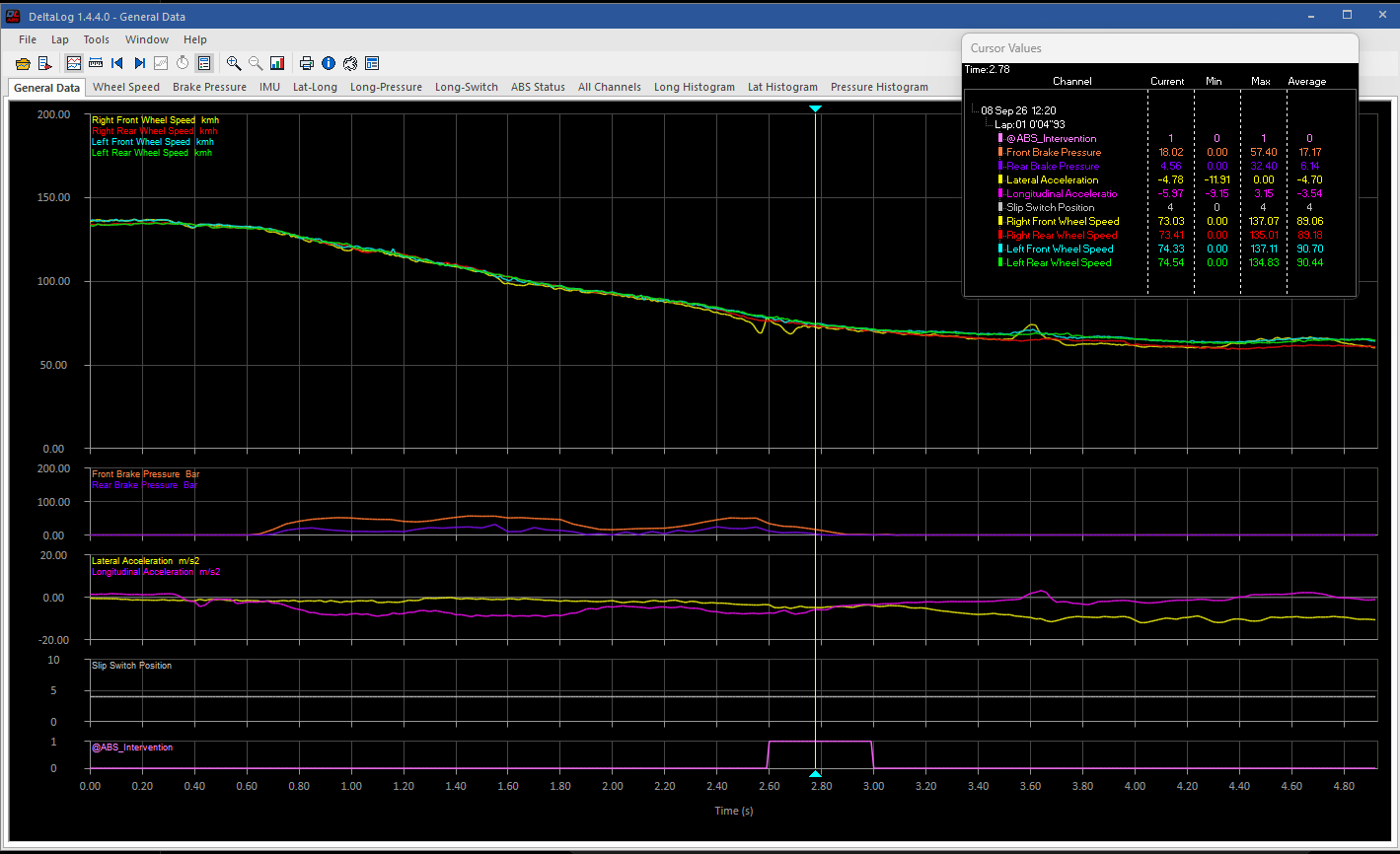
The example below shows the General Data view, with wheel speeds, front and rear brake pressures, lateral and longitudinal acceleration, slip switch position and ABS intervention plotted against time. The Cursor Values window displays channel values at the selected time, together with minimum, maximum and average values.
Open a data file
When DeltaLogABS opens, it automatically loads the last data file used. To select a new data file, click File → Open. This opens the File Manager, shown below.
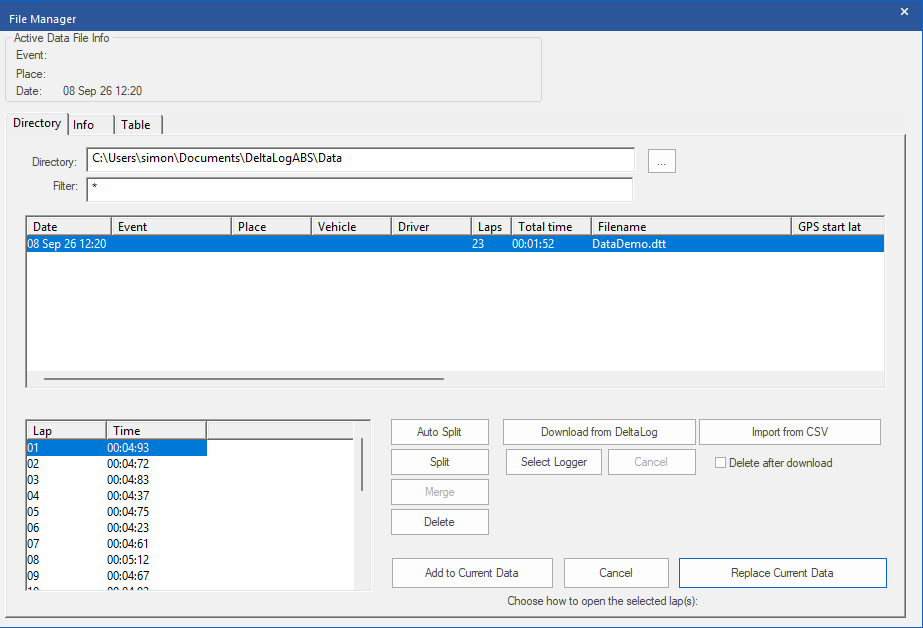
- Choose your data file from the file list. Its individual recorded events appear as numbered laps in the lap selection box.
- Select the event you want to view from the lap list.
- Click Replace Current Data to open the selected event for analysis.
For ABS event recordings, each numbered lap represents an individual recorded event.
Example data and logged channels
Example data is included with the Delta ABS setup installer so you can explore the data analysis views in DeltaLogABS.
The onboard logger records the following channels:
- Left Front Wheel Speed
- Right Front Wheel Speed
- Left Rear Wheel Speed
- Right Rear Wheel Speed
- Lateral Acceleration
- Longitudinal Acceleration
- Front Brake Pressure
- Rear Brake Pressure
- Slip Switch Position
- ABS Status
Check wheel-speed signals before activating ABS
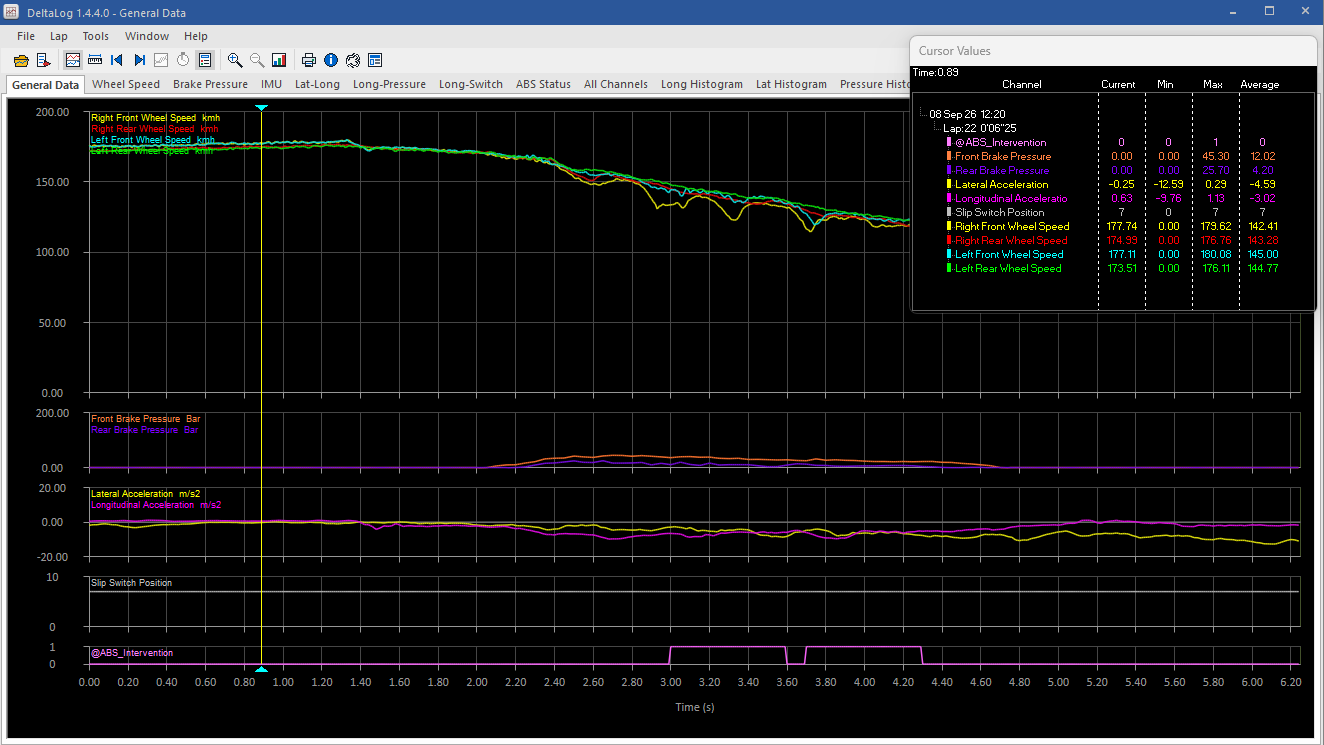
Before activating the ABS system, use the recorded wheel-speed data to check that all four signals are clean, without excessive variation.
Excessive variation may be caused by poor sensor mounting, trigger-wheel damage or wobble, or an incorrect sensor position or gap. Investigate and correct any signal issues, then repeat the recording and check the data before activating ABS.
Use Wheel Speed Trigger mode for these checks, with ABS disabled.
ABS trigger in the recorded data
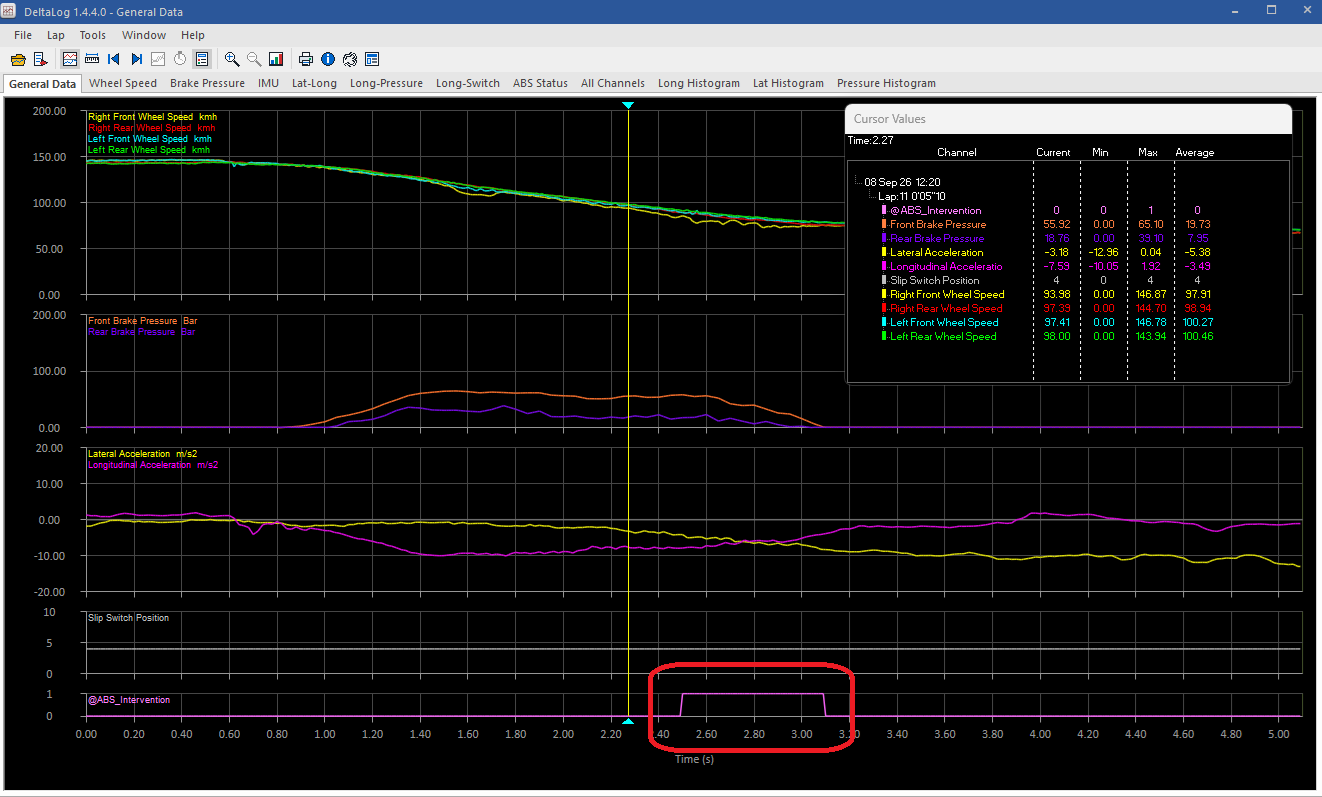
ABS Active Trigger mode is triggered during full ABS intervention, when the ABS pump runs. This is indicated by the ABS Intervention trace in the example below.
Smaller interventions that only require the inlet solenoids to correct wheel slip do not trigger the logger.
Check yaw rate sensor installation
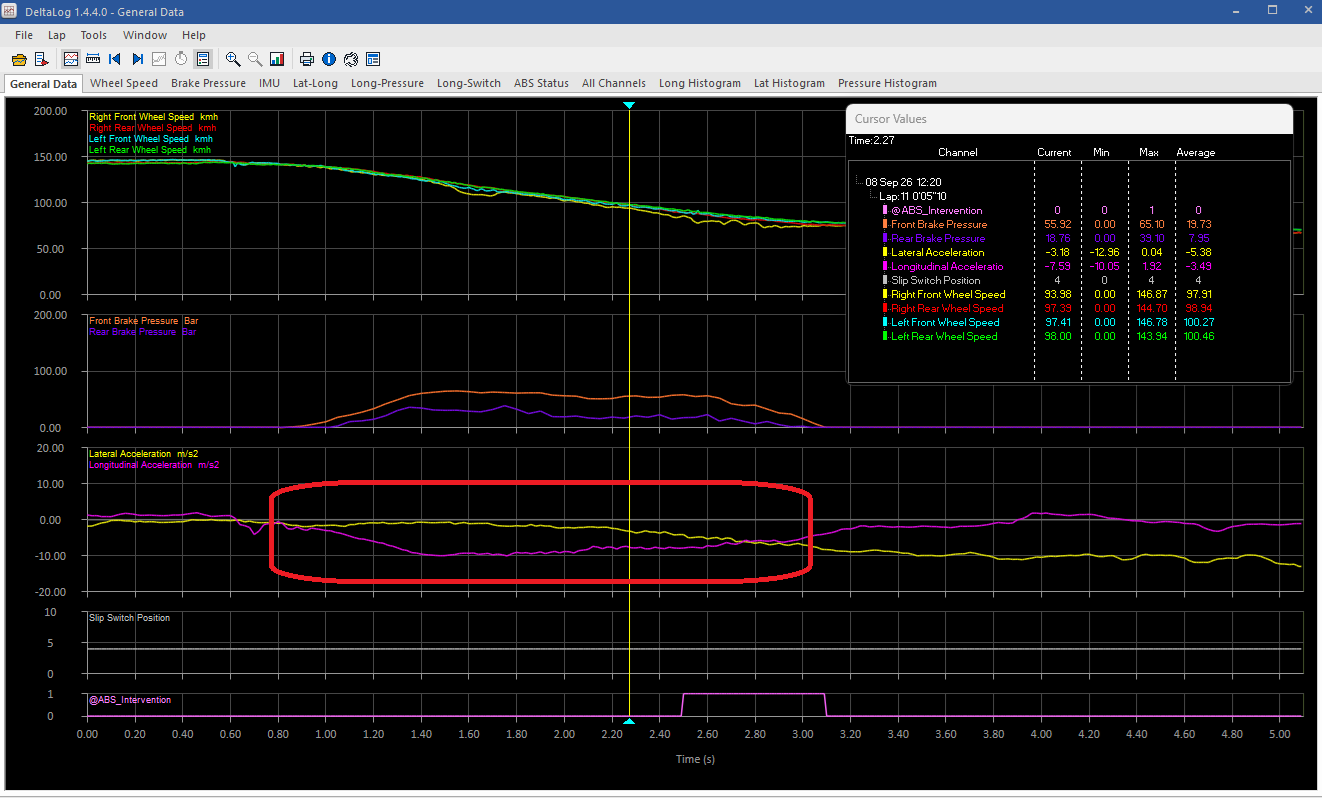
Check the yaw rate sensor installation using the recorded Longitudinal Acceleration channel (Long Acc). The value must go negative during braking, as highlighted in the example below.
Check brake-pressure sensors
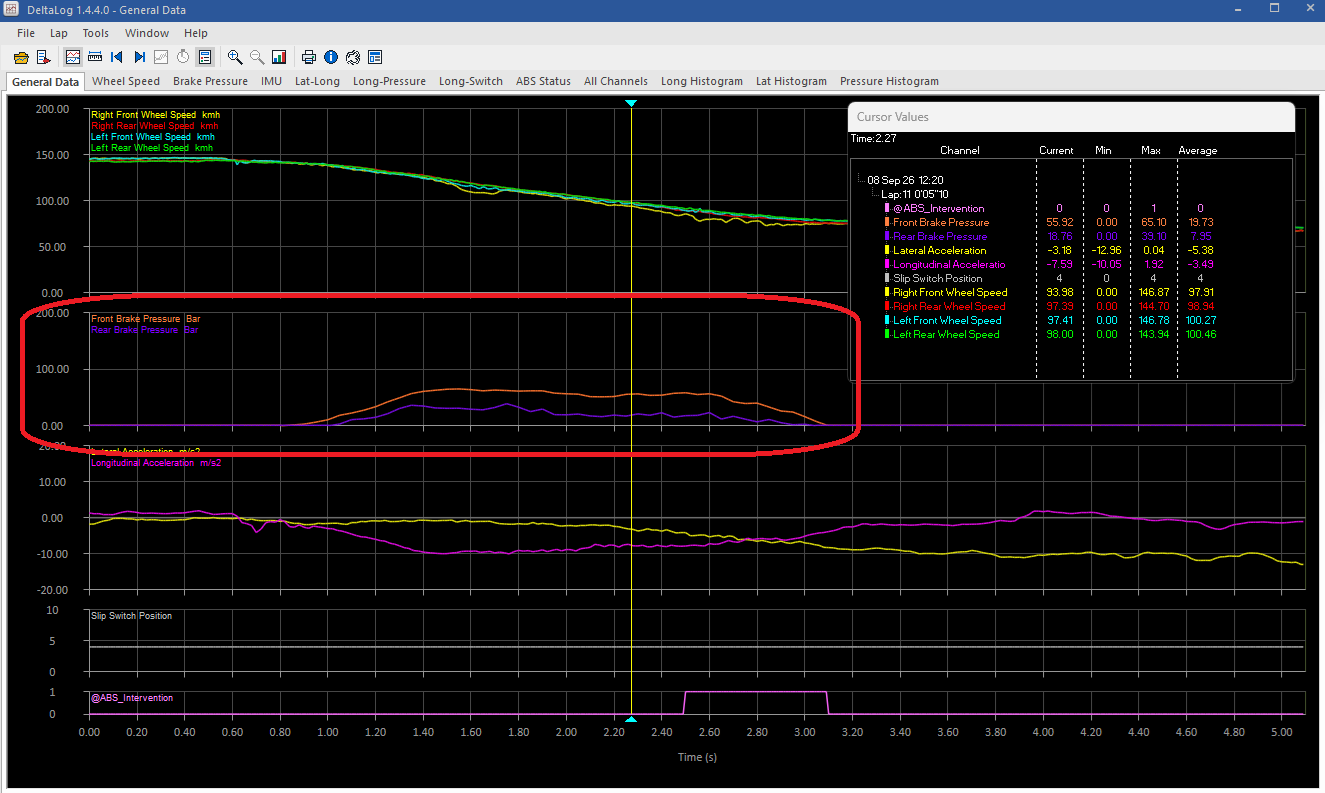
With both brake pressures logged, use the Front Brake Pressure and Rear Brake Pressure channels to confirm that both sensors are working correctly and measuring the appropriate hydraulic circuit: front pressure on the front circuit and rear pressure on the rear circuit.
Check slip switch position
Check that the recorded Slip Switch Position corresponds to the position indicated on the switch label. In the example below, the logged position is 4.